

Quick answer: An ATS-friendly CV template uses a single-column layout, standard section headings (Summary, Work Experience, Education, Skills), a common font like Arial or Calibri at 10.5 to 12 points, and no tables, text boxes, icons, images, or graphics. Save it as a PDF or Word file, and fill it with keywords from the job description. Below are three free ATS-friendly templates you can copy.
Applicant tracking systems (ATS) are the bouncers of the job market. They don't care how stylish your CV is; they just need to read it. And if your beautifully designed two-column resume confuses them, it might never reach a human.
The fix is simple: use a template built for the robots and the humans. This guide explains what makes a CV template ATS-friendly, gives you three free copy-and-paste templates, and shows you how to test whether your current template passes.
What Is an ATS-Friendly CV Template?
An applicant tracking system is software that employers use to collect, sort, and search job applications. When you apply online, the ATS parses your CV: it pulls out your name, job titles, dates, skills, and education, and stores them in a database recruiters can search. Learn more in our guide to how resume parsers work.
An ATS-friendly template is designed so that parsing works correctly. Complex layouts can cause the software to:
- Read columns in the wrong order, mixing up job titles and dates
- Skip text inside headers, footers, tables, or text boxes
- Ignore anything inside images or icons
- Miss sections with unusual names like "Where I've Been" instead of "Work Experience"
When that happens, your CV may look incomplete or irrelevant in recruiter searches, even if you're a great fit. For more on how these systems actually work (and the myths about them), read the truth about ATS.
ATS-Friendly CV Formatting Rules
1. Use a single-column layout
Content should read top to bottom in one column. Sidebars and side-by-side sections are the most common cause of scrambled parsing.
2. Use standard section headings
Stick to the names the software expects:
- Contact Information
- Professional Summary (or Summary)
- Work Experience (or Experience)
- Education
- Skills
- Certifications
Creative headings are fun to write and terrible to parse.
3. Choose a standard font
Safe choices include Arial, Calibri, Cambria, Garamond, Georgia, Helvetica, Tahoma, Times New Roman, and Verdana. Use 10.5 to 12 points for body text and 14 to 16 for headings.
4. Skip tables, text boxes, graphics, and icons
Skill bars, rating stars, logos, photos, and charts either confuse the ATS or are ignored entirely. Use plain text and simple bullet points instead.
5. Keep contact details in the main body
Some systems skip headers and footers, so put your name, phone number, email, and LinkedIn URL at the top of the page itself.
6. Use a consistent date format
"Jan 2023 – Present" or "01/2023 – Present." Pick one and use it everywhere.
7. Add keywords from the job description
ATS searches are keyword-based. Mirror the exact skills, tools, and job titles from the posting where they're true for you. Our resume keywords guide shows how to do it without stuffing.
8. Save as PDF or DOCX
Most modern ATS read text-based PDFs well, and PDF keeps your formatting intact. If the posting asks for Word, send a DOCX. Never upload a scanned image or a JPG of your CV.
Free ATS-Friendly CV Templates
Copy any of these into Google Docs or Microsoft Word, replace the brackets, and keep the formatting simple: bold for names and job titles, and standard bullet points.
Template 1: Classic chronological (most job seekers)
The best all-round choice. It puts your most recent experience first, the format recruiters and ATS expect most. See reverse chronological resumes for more.
[FULL NAME]
[City, State] | [Phone] | [Email] | [LinkedIn URL]PROFESSIONAL SUMMARY
[Job title] with [X] years of experience in [field]. Skilled in [skill 1], [skill 2], and [skill 3]. [One standout achievement with a number.]WORK EXPERIENCE
[Job Title], [Company], [City, State]
[Month Year] – Present
- [Action verb] + [what you did] + [result with a number]
- [Action verb] + [what you did] + [result with a number]
- [Action verb] + [what you did] + [result with a number]
[Job Title], [Company], [City, State]
[Month Year] – [Month Year]
- [Achievement]
- [Achievement]
EDUCATION
[Degree] in [Major], [University], [City, State], [Year]SKILLS
[Skill], [Skill], [Skill], [Skill], [Skill], [Skill]CERTIFICATIONS
[Certification Name], [Issuing Organization], [Year]
Template 2: Entry-level or recent graduate
Education and projects move up, since they're your strongest qualifications.
[FULL NAME]
[City, State] | [Phone] | [Email] | [LinkedIn or Portfolio URL]SUMMARY
Recent [degree] graduate with hands-on experience in [skill] through [internship/projects]. Looking to bring [strength] to a [target job title] role.EDUCATION
[Degree] in [Major], [University], [City, State], [Month Year]
- GPA: [3.5+ only] | [Honors]
- Relevant Coursework: [Course], [Course], [Course]
EXPERIENCE
[Internship / Part-time Job Title], [Company], [City, State]
[Month Year] – [Month Year]
- [Achievement]
- [Achievement]
PROJECTS
[Project Name]: [One line on what you built or did, tools used, and the result]SKILLS
[Skill], [Skill], [Skill], [Skill]
New to job hunting? See how to write a resume with no experience.
Template 3: Skills-forward (career changers and technical roles)
A skills section near the top helps both the ATS and recruiters see your fit quickly, while your experience stays in chronological order, which keeps parsers happy.
[FULL NAME]
[City, State] | [Phone] | [Email] | [LinkedIn URL]PROFESSIONAL SUMMARY
[Current or past role] transitioning into [new field], with strengths in [transferable skill 1] and [transferable skill 2]. [Relevant achievement or certification.]CORE SKILLS
[Skill] | [Skill] | [Skill] | [Skill] | [Skill] | [Skill]WORK EXPERIENCE
[Job Title], [Company], [City, State]
[Month Year] – Present
- [Achievement that shows a transferable skill]
- [Achievement that shows a transferable skill]
EDUCATION & CERTIFICATIONS
[Degree], [University], [Year]
[Certification], [Organization], [Year]
Changing careers? Our guide to a career change resume shows how to frame transferable skills.
What an ATS-Friendly Template Looks Like
Here's a single-column template with clear headings, standard fonts, and dates in the body text. It's easy for both parsers and people to read:
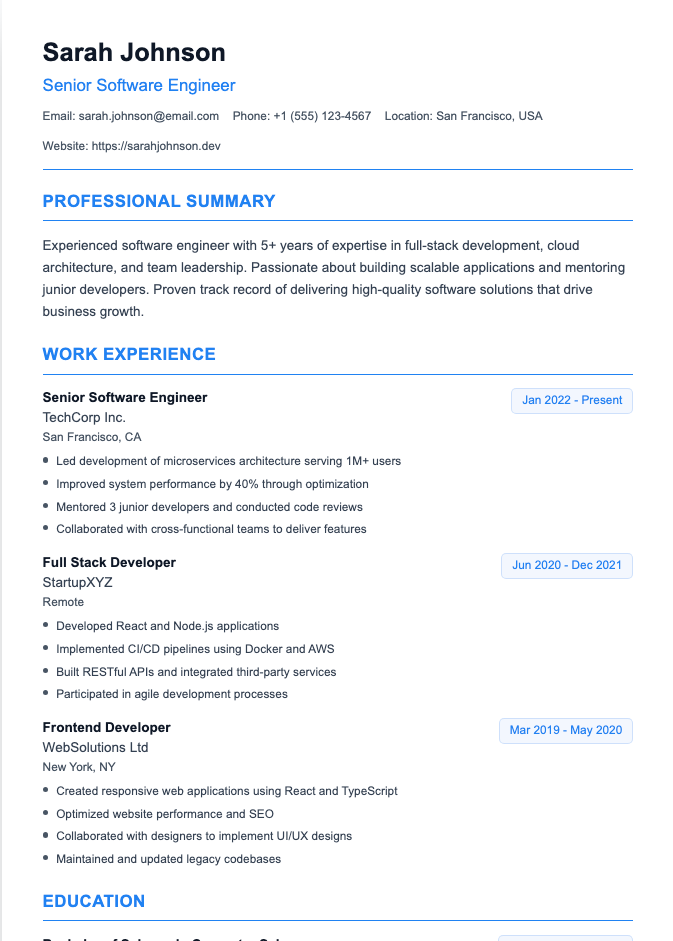
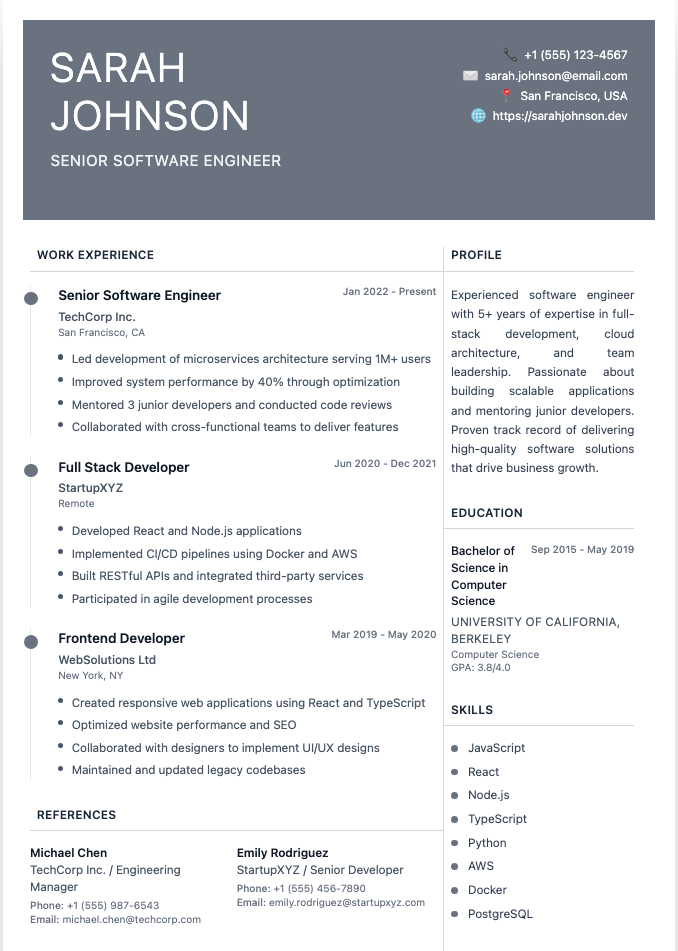
Compare it with a two-column design like the one below. It looks great to a human reader, but older or simpler ATS may read the sidebar and main column out of order. If you love a two-column design, save it for networking and in-person handoffs, and use a single-column version for online applications.
How to Test If Your CV Template Is ATS-Friendly
No guide we found covers this, but it takes two minutes and tells you more than any "ATS-friendly" label:
- The copy-paste test. Open your PDF, select all the text, and paste it into a plain text editor like Notepad or TextEdit. If the text comes out in the right order, with headings, titles, and dates in sensible places, an ATS will probably read it fine. If it's jumbled or missing sections, simplify your layout.
- The upload test. Many job portals show the fields they've filled in from your CV after you upload it. If your job titles end up in the wrong boxes, that's a parsing problem.
- The ATS checker test. Run your CV through an ATS checker or resume scanner to see how it parses and how well it matches a specific job description.
ATS-Friendly CV Myths
- "ATS can't read PDFs." Most modern systems handle text-based PDFs well. Only scanned or image-based PDFs are a problem.
- "Your CV must be one page." ATS doesn't care about page count. Recruiters care about relevance. Two pages is fine with enough experience; see how long a resume should be.
- "No color allowed." A little color in headings is fine. It's graphics, tables, and columns that cause trouble.
- "Hide keywords in white text." Don't. Recruiters see the parsed text, and it looks exactly as desperate as it sounds.
- "The ATS rejects you automatically." Most systems rank and filter rather than auto-reject, but a poorly parsed CV is much harder to find.
Where to Find More Free ATS-Friendly Templates
- Google Docs and Microsoft Word: choose the simplest single-column options. See our Google Docs resume templates and Word resume templates.
- Plain text resume: for portals that only accept text, use a plain text resume.
- Our templates: browse our resume templates. For online applications, pick a single-column design like Professional.
Frequently Asked Questions
What makes a CV template ATS-friendly?
A single-column layout, standard section headings, a common font, simple bullet points, contact details in the main body, and no tables, text boxes, images, or graphics.
What is the best format for an ATS-friendly CV?
The reverse-chronological format works best for most people because it's the structure ATS and recruiters expect. Save it as a text-based PDF or a DOCX file.
Are Canva templates ATS-friendly?
Many aren't, because they use columns, icons, and graphics. Simple single-column Canva templates can work. Run the copy-paste test before you use one. See our Canva AI resume builder review.
Is PDF or Word better for ATS?
Both work with most modern systems. PDF keeps your formatting consistent, while Word is safest if the job posting specifically asks for it.
Can I use a two-column resume for ATS?
It's risky. Some modern systems handle two columns, but many still read them out of order. A single-column layout is the safest choice for online applications.
How do I make an ATS-friendly CV for free?
Copy one of the free templates above into Google Docs or Word, use standard headings and fonts, add keywords from the job description, and save it as a PDF.
Build an ATS-Friendly CV Automatically
Our Resume Builder includes clean, single-column templates with standard headings and consistent formatting, so you can focus on what you write instead of how the robots read it.