

Quick answer: To make a resume in Google Docs, open docs.google.com, click Template gallery, and scroll to Resumes, where you will find five free templates: Swiss, Serif, Coral, Spearmint, and Modern Writer. Pick one, replace the placeholder text, then go to File > Download > PDF to send it. For ATS-friendly results, keep the layout simple and single-column.
Google Docs is the resume tool most of us already have open in another tab, right next to the job posting we have been "about to apply to" for three days. It is free, it saves automatically, and you can edit it from your phone in a parking lot five minutes before an interview.
This guide covers the built-in Google Docs resume templates, how to make a resume in Google Docs from scratch, which options are the best resume template Google Docs offers for applicant tracking systems, and how to export and share without formatting surprises.
How to Find Google Docs Resume Templates
- Go to docs.google.com and sign in.
- Click Template gallery at the top right of the "Start a new document" row.
- Scroll down to the Resumes section.
- Click a template to open an editable copy in your Drive.
If you use a work or school Google account, you may see your organization's templates first. Switch to the General tab to find the standard ones.
The 5 built-in resume templates
- Swiss: Clean and minimal with a bold name. Uses a two-column structure in places.
- Serif: Classic serif typography with a right-hand column for skills and extras. Feels traditional and academic.
- Coral: Single-column with a coral accent color. Friendly and modern.
- Spearmint: Single-column with a mint-green accent. Simple and easy to scan.
- Modern Writer: Uses a monospace, typewriter-style font. Distinctive, but less conventional.
Swiss, Spearmint, and Modern Writer also have matching cover letter templates in the Letters section, so your application can look like a set. (Need help with the content? Read our cover letter format guide for Google Docs.)
Best Resume Template in Google Docs (and Which Are ATS-Friendly)
The "best" template depends on where your resume is going.
For online applications and ATS: choose a single-column layout like Spearmint or Coral, or build your own from a blank document. Applicant tracking systems read top-to-bottom text most reliably, and multi-column layouts or text inside tables can get scrambled.
For networking, email, or in-person handoffs: Swiss and Serif look polished and work well when a human is the first reader.
Watch out for: two-column templates (Swiss and Serif) can leave awkward blank space on later pages if your resume runs longer than one page.
What makes a Google Docs resume ATS friendly
Most Google Docs ATS friendly resume templates share these traits:
- One column, with clear section headings like Work Experience, Education, and Skills
- Standard fonts (Arial, Calibri, Georgia, Garamond, or similar)
- No text in headers, footers, images, or drawings
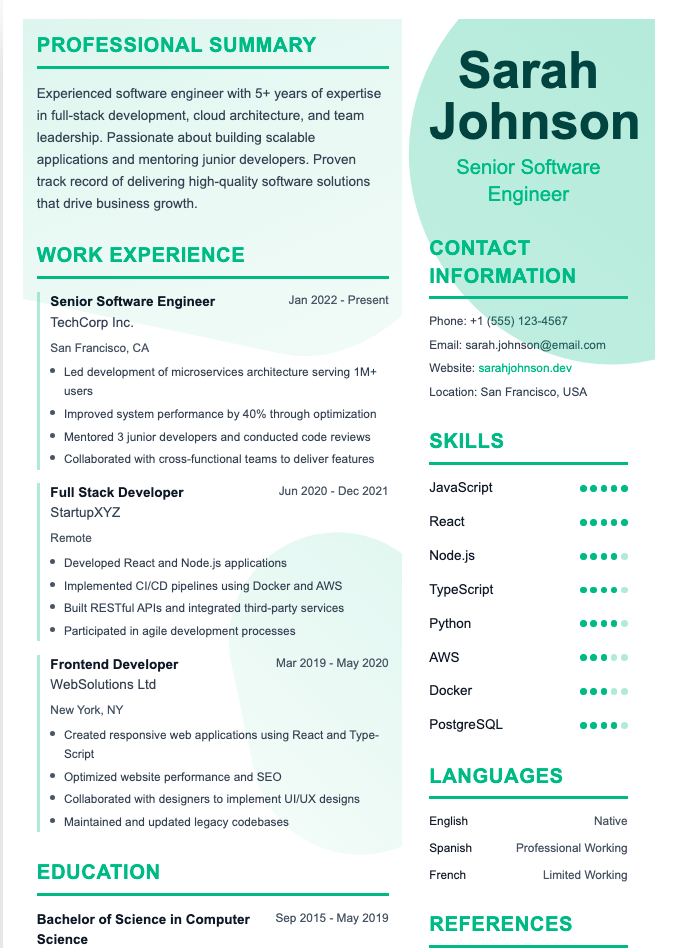
- No icons, skill bars, or charts
- Bullets created with the built-in bullet tool, not special symbols
Many third-party sites sell or share templates labeled "ATS-friendly." Treat that as a claim, not a guarantee. Run your exported PDF through an ATS checker, or copy and paste the text into a plain document to see whether it comes out in the right order. Learn more in the truth about ATS.
How to Make a Resume in Google Docs from Scratch

Building from a blank document gives you full control and the cleanest ATS result.
1. Set up the page
- File > Page setup: choose Letter size (US) or A4 (most other countries).
- Set margins between 0.5 and 1 inch.
- Pick one font for the whole document. Use 10–12 pt for body text and 14–16 pt for headings.
2. Add your header
Type your name in a larger, bold font. On the next line, add your phone, professional email, city and state, and LinkedIn or portfolio link, separated by a simple dot or comma.
3. Create your sections
Use Format > Paragraph styles to make each section title a Heading. This keeps everything consistent and makes later edits faster. A typical order:
- Summary
- Work Experience
- Education
- Skills
- Certifications or Projects (optional)
Not sure which order fits your situation? See our guide to resume sections order.
4. Align dates with tab stops
Put your job title and company on the left and dates on the right using a right-aligned tab stop (click the ruler to add one). This looks tidy and avoids tables that can confuse ATS software.
5. Write strong bullets
Use the bullet list button and start each line with an action verb. Focus on results, not duties. Our guide on resume bullet points that turn duties into results has plenty of examples.
Google Docs shortcuts that save time
- Paint format (paint roller icon): copy styling from one line to another.
- Format > Clear formatting: remove messy styles from pasted text.
- File > Version history: restore an earlier draft if you delete something important.
- File > Make a copy: keep a master resume and create a tailored copy for each job.
How to Customize a Google Docs Resume Template
If you prefer to start from a template:
- Replace all placeholder text, including the sample name and "Lorem ipsum" lines. (Hiring managers have met Lorem Ipsum. They were not impressed.)
- Add a summary. The built-in templates do not include a dedicated summary section. Duplicate an existing section heading, rename it "Summary," and move it under your header. See how to write a resume summary.
- Switch paragraphs to bullets where templates use paragraph-style descriptions.
- Rename sections to fit you, for example "Awards" to "Certifications."
- Delete sections you do not need instead of leaving them empty.
How to Download and Share Your Google Docs Resume
To download: go to File > Download and pick:
- PDF Document (.pdf): best for most applications. Your formatting stays exactly as you designed it.
- Microsoft Word (.docx): use this when an employer specifically asks for Word. Open the file once to check spacing, since conversion can shift things slightly.
- Plain text (.txt): handy for pasting into online forms.
To share a link: click Share, change General access to Anyone with the link, and set the role to Viewer. Never share with "Editor" access, and remember that anyone with the link can see your contact details.
Rename your file something professional, like "Jane-Smith-Resume.pdf," instead of "Copy of Untitled document (3)."
Frequently Asked Questions
Does Google Docs have free resume templates?
Yes. Google Docs includes five free resume templates in its Template gallery: Swiss, Serif, Coral, Spearmint, and Modern Writer. You can also open third-party templates in Google Docs by making a copy into your Drive.
Are Google Docs resumes ATS friendly?
They can be. A Google Docs resume exported as a PDF or Word file is readable by most applicant tracking systems if it uses a single column, standard headings, and no text inside images, tables, or headers. Two-column templates carry more risk.
Which Google Docs resume template is best?
For online applications, single-column templates like Spearmint or Coral are the safest choices. For networking or direct email, Swiss and Serif look polished. Whichever you choose, customize it and add a summary section.
Should I send my resume as a Google Docs link or a PDF?
Send a PDF unless the employer asks for a link. PDFs keep formatting consistent and do not depend on sharing permissions. If you do share a link, set access to Viewer only.
How do I make my Google Docs resume one page?
Reduce margins to no less than 0.5 inch, tighten spacing under Format > Line and paragraph spacing, and cut older or less relevant bullets. Our one-page resume examples show what to keep and what to cut.
Want a Faster Option Than Google Docs?
Google Docs is a solid free option, but you still handle the formatting yourself. Our Resume Builder gives you ATS-friendly templates, AI-written bullet suggestions, and one-click PDF export, so you can spend your time on the content instead of tab stops.