

Quick answer: Canva's AI resume builder is a design-first tool. You pick a template, then use AI (Magic Write and resume apps like Job and Resume AI) to draft or tailor text from your resume and a job description. It's free to start and great for visual resumes, but many templates use columns and graphics that applicant tracking systems can misread.
Canva is where many of us go to make birthday invitations, social posts, and, at 1 a.m. before a deadline, resumes. It's fast, it's pretty, and the templates make you look like you have your life together.
But a resume isn't a poster. It has to impress a human and survive software. So how does Canva's AI resume builder hold up when the goal is getting interviews, not just compliments?
This review covers how the tool works, what the AI actually does, what's free, whether a Canva resume is ATS friendly, and who should (and shouldn't) use it.
What Is Canva's AI Resume Builder?
Canva doesn't have a separate "resume app" the way dedicated resume builders do. Instead, Canva's AI resume builder is a combination of three things inside the regular Canva editor:
- Resume templates: a large library of free and premium designs you edit with drag-and-drop.
- Magic Write: Canva's built-in AI writing assistant, which Canva says is powered by OpenAI. It can draft, rewrite, shorten, or expand text.
- Resume apps in the Apps panel: Canva's AI resume builder page walks you through the Job And Resume AI app, where you paste your resume text and a job description to generate suggestions for your summary, skills, experience, and a cover letter. Other resume-related apps in Canva's marketplace are built by third-party developers.
In short: Canva handles the design, and the AI helps with words. It doesn't manage your career history in one place, score your resume, or check it against an ATS.
How to Use Canva's AI Resume Builder (Step by Step)
Based on Canva's own instructions, the process looks like this:
- Choose a template (or start from a blank design) by searching "resume" in Canva.
- Open the Apps tab in the editor sidebar and select the Job And Resume AI app.
- Paste your resume text and the job description you're targeting.
- Generate suggestions for your summary, skills, experience, and cover letter. Regenerate until the tone fits.
- Drag the content into your design and adjust spacing, fonts, and colors.
- Download or share your resume. Canva mentions PDF download and sharing by link or email.
A tip from experience: write your content first, design second. If you start with the design, you'll spend 40 minutes choosing between two shades of sage green and approximately four minutes on your actual accomplishments.
Canva Resume Builder AI Features, Tested Against What Matters
Templates and design
This is Canva's superpower. You'll find layouts for nearly every style, from minimalist to bold, and you can change any color, font, or element. Real-time collaboration means a friend or mentor can comment directly on your draft.
The flip side: Canva also offers icons, charts, photos, skill bars, and even animations. Almost none of those belong on a resume, and the more you add, the harder your resume is for software to read.
Magic Write
Magic Write is handy for getting unstuck: drafting a summary, rephrasing a bullet, or shortening a paragraph. Reviewers at competing resume tools describe it as fairly basic for resume work. It improves wording, but it doesn't push you to add metrics or check your keywords against a posting. That part is still on you.
Job and Resume AI app
This is the closest Canva gets to a resume-specific AI. Because it uses both your resume and the job description, its suggestions can be more targeted than a generic rewrite. Canva's FAQ notes that the more detail you provide, the better the output, which is true of every AI writing tool.
What's missing
Compared with dedicated resume builders, Canva doesn't offer:
- An ATS check or resume score
- A content database that stores your experience so you can quickly create tailored versions
- Automatic reflow when your text grows (you'll be nudging text boxes by hand)
- Built-in guidance on resume sections, length, or bullet structure

Is Canva's AI Resume Builder Free?
Mostly, yes, with some caveats:
- Canva Free gives you access to many resume templates and PDF downloads.
- Canva's AI resume builder page says the resume builder app is free to use.
- Canva's pricing page lists a monthly AI allowance on the Free plan (up to 20 uses of Standard AI tools and up to 20 uses of Premium AI tools at the time of writing) and notes that some tools, including Magic Write and Translate, don't count toward the monthly allowance.
- Premium templates and elements require Canva Pro. When we checked Canva's US pricing page in October 2026, Pro was listed at US$144 per year for one person, with a free trial. Prices change and vary by region, so check current pricing before you subscribe.
- Third-party apps in the Apps panel may have their own paid tiers and their own privacy policies. Read both before pasting in your work history.
Is a Canva Resume ATS Friendly?
(Switches to serious face.) This is the most important question in this review.
An applicant tracking system doesn't know or care that your resume was made in Canva. What it cares about is whether it can extract your text in the right order. Many Canva templates make that hard because they use:
- Multiple columns, which can be read in the wrong order
- Floating text boxes, which may be skipped or jumbled
- Icons and graphics in place of words (a phone icon instead of the word "Phone")
- Skill bars and charts, which an ATS can't interpret at all
- Decorative fonts that may not convert cleanly
One competing resume tool that imported Canva resumes for its review reported bullet points merging into paragraphs and sections landing out of order. A career coach writing for The Muse has also said she steers clients toward Word or Google Docs instead of Canva for online applications.
For a myth-free breakdown of how these systems really work, read the truth about ATS.
How to make a Canva resume ATS friendly
If you love Canva and want to keep using it, reduce the risk:
- Choose a single-column template with clear, standard section headings ("Experience," "Education," "Skills").
- Remove icons, photos, skill bars, and charts. Write your skills as words.
- Use a standard font like Arial, Calibri, or Georgia.
- Download as "PDF Standard," not as an image (PNG or JPG). Image files contain no readable text.
- Run the copy-paste test: open your PDF, select all, and paste into a plain text editor. If the text comes out in the right order, an ATS will probably read it too. If it's scrambled, so is your application.
- Mirror the job description's keywords honestly. Our guide on resume keywords optimization shows how.
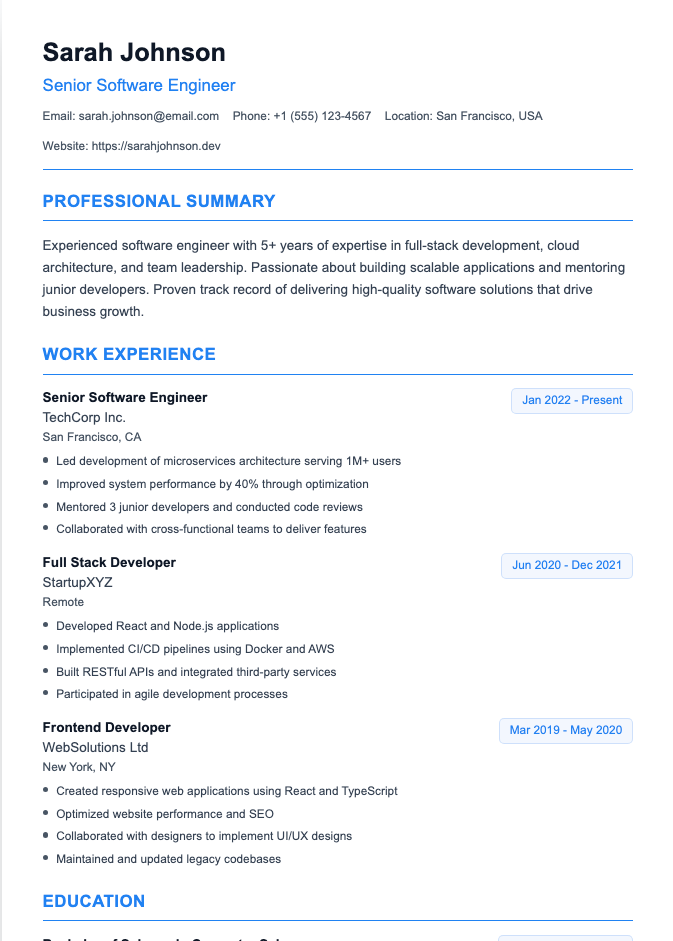
Want a backup that almost any system can read? Keep a plain text version of your resume for copy-paste application forms.
Canva AI Resume Builder: Pros and Cons
Pros
- Huge template library, with plenty of free options
- Total design control over colors, fonts, and layout
- Free to start, with AI writing help available on the free plan
- Job-description-based suggestions through the Job And Resume AI app
- Easy collaboration for feedback from friends or mentors
- Great for print and handing to people in person
Cons
- Many templates aren't ATS friendly out of the box
- AI is a writing helper, not a resume coach. No scoring, keyword gap analysis, or structure guidance
- Manual formatting: text doesn't reflow automatically, and multi-page resumes need fiddling
- Easy to over-design. The tools invite more decoration than a resume needs
- Third-party apps vary in quality, pricing, and data handling
Who Should Use Canva for Their Resume?
Canva is a good fit if you:
- Work in a creative field (design, marketing, content, events) where visual presentation is part of the pitch. See our guide to creative resume examples and formats for what works.
- Are handing your resume directly to a person: at a networking event, career fair, or through a referral.
- Want a printed one-pager or a portfolio companion.
Consider a different tool if you:
- Apply mostly through online job portals at mid-size or large companies.
- Work in a conservative industry (finance, law, government, healthcare administration).
- Need to tailor your resume quickly for many applications.
A common, sensible approach is to keep two versions: a clean, ATS-safe resume for portals and a designed Canva version for humans.
Canva AI Resume Builder Alternatives
If Canva doesn't fit how you're applying, there are several types of tools to consider:
- Google Docs or Word: free, simple, and reliably ATS-friendly if you use a basic template. Browse our Google Docs resume templates.
- Dedicated AI resume builders: tools like Teal, Rezi, and our own AI Resume Builder focus on content and ATS-friendly formatting first, with design second. We've reviewed the Teal AI resume builder free plan if you want to compare.
- AI feedback tools: if you already have a resume and just want it improved, see our roundup of AI resume rewriter and feedback tools.
The right choice depends on where your resume is going. A beautiful resume that never reaches a human isn't doing its job, and a perfectly parsed resume that bores the human isn't either.
Final Verdict: Should You Use Canva's AI Resume Builder?
Canva's AI resume builder is an excellent design tool with helpful, but basic, AI writing features. If you want a visually striking resume and you're careful to pick a simple, single-column layout, it can work well, especially for creative roles and in-person networking.
For high-volume online applications, though, a dedicated resume builder or a plain document will usually serve you better. Use Canva for what it does best (design) and make sure your content and format are working just as hard.
Frequently Asked Questions
Is Canva's AI resume builder free?
Yes, you can use Canva's resume templates, download PDFs, and use AI writing tools on the free plan, within Canva's AI usage limits. Canva's page for its resume builder app says the app is free. Premium templates and some features require Canva Pro, and some third-party apps charge separately, so check current pricing.
Are Canva resumes ATS friendly?
Some are, many aren't. Multi-column layouts, text boxes, icons, and skill bars can confuse applicant tracking systems. A single-column template with standard headings and fonts, downloaded as a text-based PDF, is much safer.
Do employers dislike Canva resumes?
Employers don't usually care which tool you used. They care whether the resume is easy to read and relevant. Overly decorated resumes can feel cluttered, and in conservative industries a simpler design generally lands better.
Can I download a Canva resume as a Word document?
Canva's resume builder page lists PDF download and sharing, and its general export options include PDF, JPG, PNG, and PPTX. If an employer specifically asks for a Word file, it's usually easier to build that version in Word or Google Docs.
What AI does Canva use for resumes?
Canva's main writing assistant is Magic Write, which Canva says is powered by OpenAI. Its resume builder page also features the Job And Resume AI app, which generates suggestions from your resume text and a job description.
Is Canva good for resumes?
Canva is good for visually appealing resumes, especially in creative fields or when you hand your resume to people directly. For online applications that go through an ATS, choose a simple template or use a tool built specifically for resumes.
Build a Resume That Looks Good and Gets Read
If you want AI writing help and an ATS-friendly layout without nudging text boxes around, give our Resume Builder a try. Add your experience, choose a clean template, and download a resume that's built for both the software and the human reading it.